
Nissan Leaf Owners Manual | 2025
9.12.2. How to enable/disable the ELA system
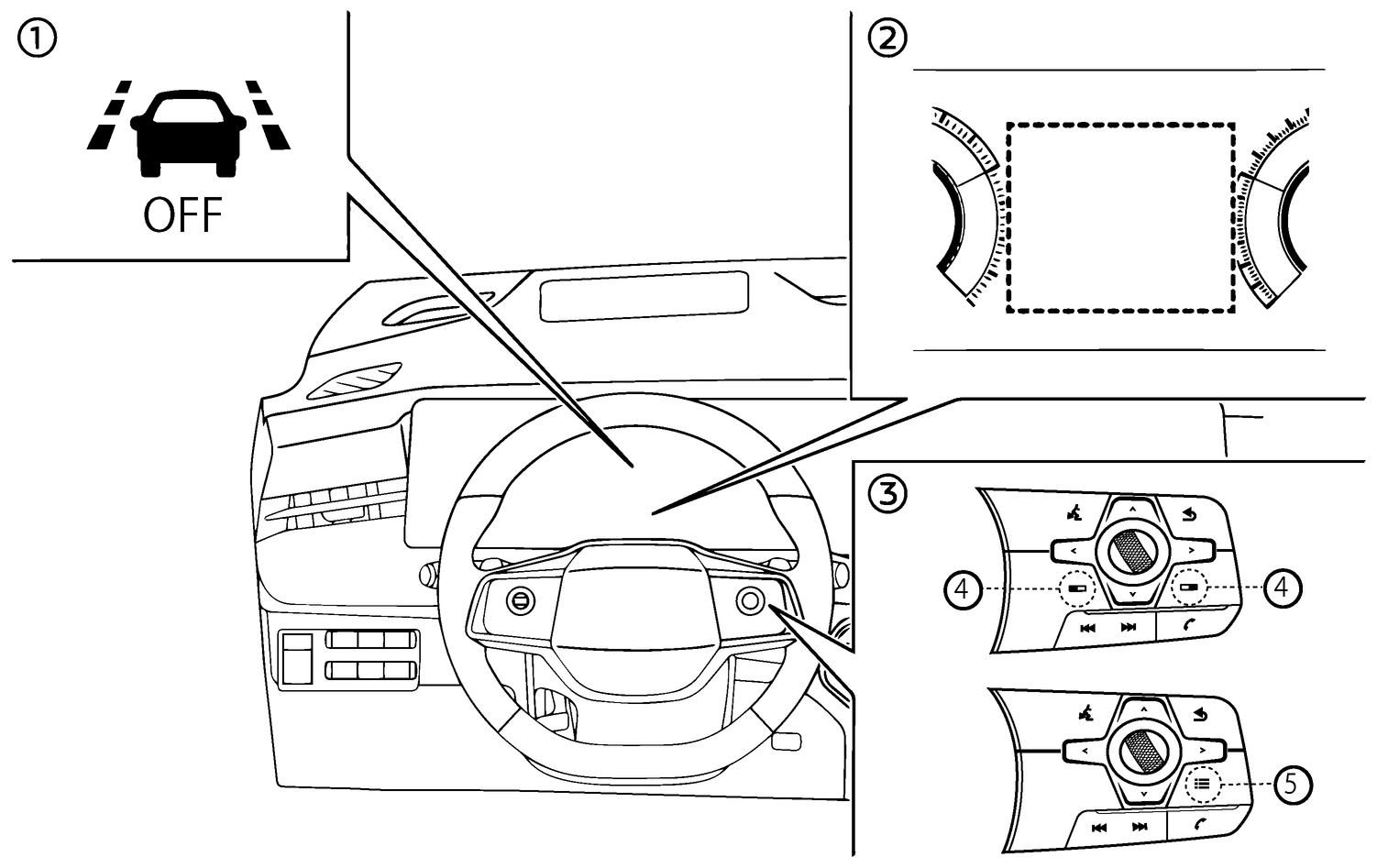
- (1)ELA OFF indicator (on the vehicle information display)
- (2)Vehicle information display
- (3)Steering-wheel-mounted controls (right side)
- (4)Switch screen button/Shortcut menu button (where fitted)
- (5)Shortcut menu button (where fitted)
Perform either of the following steps to enable or disable the ELA system.
Shortcut Menu
Push the switch screen (4) (where fitted)
 (for LHD models) or
  (for RHD models) button to display [Shortcut Menu]. Make sure that focus is previously being placed on the vehicle information display.
Push the shortcut menu button (5) (where fitted)
 to display [Shortcut Menu].
Select [Driver Assist Custom] and push the scroll dial to enable the system settings.
Select [Custom Mode Setup] and push the scroll dial.
Select [Emergency Lane] and push the scroll dial to turn the system on or off. When [Advanced Lane] is selected, a part of the ELA system functions is turned on or off.
Settings
Push the

 button until [Settings] appears in the vehicle information display and then push the scroll dial. Use the scroll dial to select [Driver Assistance]. Then push the scroll dial.
Select [Lane Assist] and push the scroll dial.
Select [Emergency Lane] and push the scroll dial to turn the system on or off.
When [Advanced Lane] is selected, a part of the ELA system functions is turned on or off.
When [Emergency Lane] is turned off, the ELA system OFF indicator illuminates and the ELA system will be turned off.
For details, see
.
The ELA system will be automatically turned on each time the EV system is restarted.
Applied road conditions:
[Emergency Lane]: Lane assist on the road with a solid line or road edge
[Advanced Lane]: Lane assist on the road with a dashed line
Warning function will be automatically turned on each time the EV system is restarted.